Content Entries
Manage individual pages of content
Content entries are the individual pieces of content that belong to a content type. If you have a content type called blog, each blog post is a content entry. If you have an author type, each author is an entry. Entries are where editors spend most of their time — creating, updating, and publishing content.
Browsing Entries
Each content type has its own entries page, accessible from the sidebar. The page lists all entries for that type, each showing its current state alongside its name. A search bar at the top lets you filter entries by name as you type. Entries are displayed to each user according to their permissions. Users with content:read see all entries. Users with only own:content:read see only entries they created themselves.
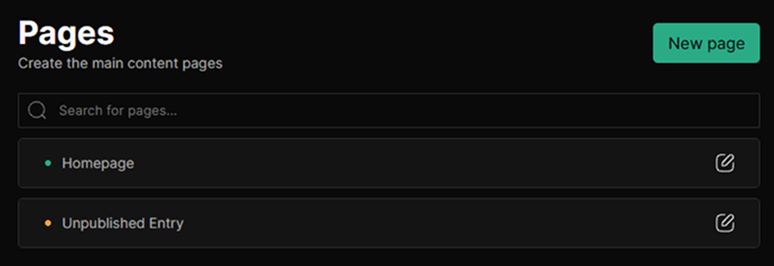
Use the New [type] button at the top right of the entries list to create a new entry. The entry is created immediately with a default state of Draft and added to the list, ready to be opened and edited.
Editing an Entry
Clicking an entry opens the entry editor. What you see depends on whether the content type supports blocks:
- With block support: the editor shows the block builder as the main area, with the content type fields in a collapsible sidebar panel on the right. Both the fields and blocks are saved automatically.
- Without block support: the editor shows the fields defined on the content type as a full-width form. Fill in each field and changes are saved automatically as you type.
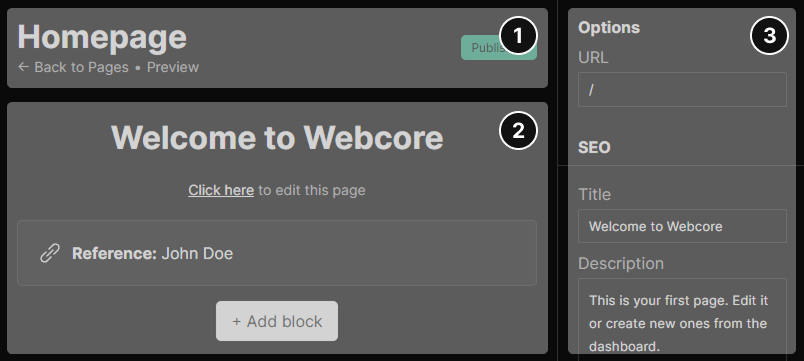
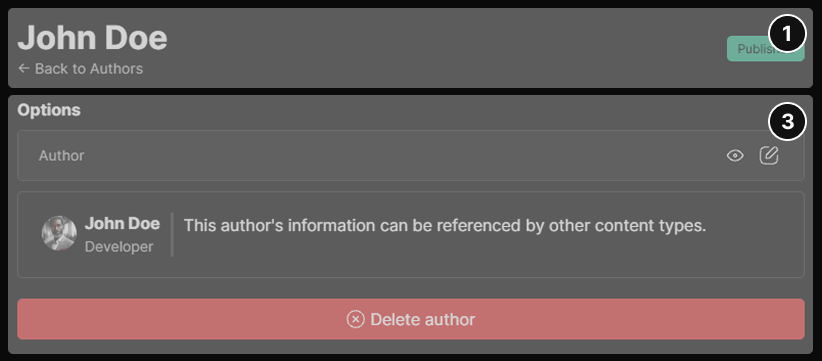
- Entry Name and State At the top of the entry editor, you can update the entry’s display name and assign it a state. The name is used as the label in the entries list and has no effect on the frontend. The state controls whether the entry is included in production builds. Only entries mapped to the
PUBLISHEDsystem state are visible in production. - Blocks If the content type has Supports Blocks enabled, the block builder is available in the main area of the editor. Blocks can be added from the block selector, reordered by dragging, and each block’s props are editable through the block editor panel.Blocks are always scoped to a single content entry, they cannot be shared between entries. They are stored and rendered in the order defined in the builder.For block fields defined on the content type (fields of kind
block), the field appears in the sidebar as a linked control. Clicking it opens the block editor for that field, letting you configure the associated block’s props directly. - Fields The right-hand sidebar shows all fields defined on the content type. Each field renders as the control configured in the type definition — a text input, select, checkbox, textarea, or block selector. See Content Types for details on how to configure fields. Changes to fields are debounced and saved automatically. There is no manual save step.
Deleting an Entry
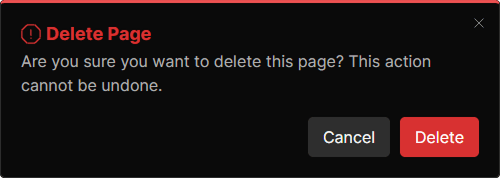
The delete button is available at the bottom of the options pane. Deleting an entry is permanent. All blocks associated with the entry are deleted along with it.
- Users with
own:content:deletecan only delete entries they created themselves. - Users with
content:deletecan delete any entry.
Using Entries on the Frontend
Entries are queried on the frontend using the getContentType helper inside getStaticPaths for dynamic routes. However, you can also query entries directly by their ID using the getContentEntryById helper in the following way:
import { getContentEntryById } from '@utils/server'
const entry = await getContentEntryById<MyEntryFieldsType>(123)
Each entry exposes:
| Property | Description |
|---|---|
id | The numeric ID of the entry. |
state | The system state of the entry: DRAFT, PUBLISHED, or ARCHIVED. |
stateName | The human-readable name of the assigned state, as defined in Content States. |
entry.fields | The typed field values for this entry, keyed by field name. |
blocks | All blocks assigned to this entry, in order, ready to be passed to ComponentMap. |
Unlike in getContentType, entries returned by getContentEntryById are not filtered by state. This means you can query any entry by ID regardless of its current state, which is useful for previewing drafts or building custom interfaces.
Permissions
Content permissions support two scopes: global (all entries) and own (entries created by the current user). When a user has own:content:* permissions without the corresponding content:* permission, they are restricted to entries they created.
| Permission | Description |
|---|---|
content:read | View all entries across all content types. |
own:content:read | View only entries created by the current user. Mutually exclusive with content:read. |
content:create | Create new entries. |
content:update | Edit any entry's fields, blocks, name, and state. |
own:content:update | Edit only entries created by the current user. Mutually exclusive with content:update. |
content:delete | Delete any entry and its associated blocks. |
own:content:delete | Delete only entries created by the current user. Mutually exclusive with content:delete. |
Content permissions are also scoped by content type. A role can be configured to grant access to specific content types only. For example, allowing a user to read and edit blog entries but not author entries. This is managed through role scopes on the Roles & Permissions page.